


Edge Lighting - LED Borders
0.00.00 Reviews
App Specs
- Version
- 1.8.15
- Updated On
- License
- Free
- Downloads
- 10,000,000+
- Developer
- EAGLE APPS
- Categories
- Personalization
- Platform
- Android
Screenshots
 Analysis by AppCompare
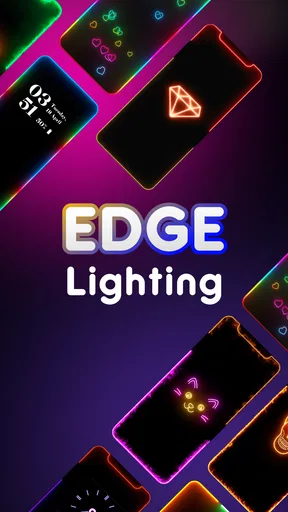
I like personalization apps that make a phone feel more individual without forcing me to rebuild the entire interface. Edge Lighting - LED Borders takes that focused approach: it adds a glowing border effect around the screen for calls and notifications. After using it as a visual alert, I found the idea more useful than a simple decorative wallpaper, although the experience depends heavily on careful setup and on how the phone handles notifications.
The app comes from EAGLE APPS and sits in the personalization category. It is free to install, suitable for Everyone, and has attracted over 10 million installs. The current version is 1.8.14, and it works on devices running Android 7.0 or later. Optional in-app purchases range from 49 cents to $14.99 per item, so it is possible to try the basic experience before deciding whether extra customization is worth paying for.
Where the experience usually gets stuck
The most common frustration is expecting the border to appear immediately after installation. In practice, an edge-lighting app needs to react to an event, so simply opening it does not prove that everything is working. I would first create or wait for a genuine notification, then check whether the effect appears while the phone is locked, idle, or displaying another screen. Testing only from inside the app can give a misleading impression.
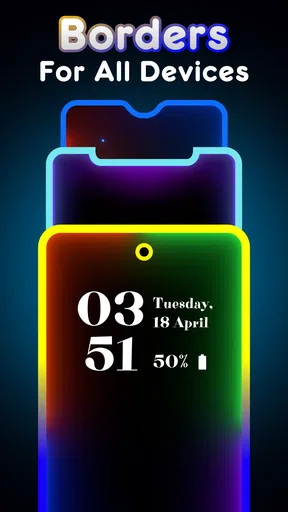
Another point of confusion is that the visible result is not identical on every phone. Screen shape, curved corners, display cutouts, always-on display behavior, lock-screen rules, and the manufacturer’s own notification controls can all change how an illuminated border looks. A design that looks clean on a phone with narrow bezels may feel cramped around a camera cutout on another model.
I also found it important to separate three different expectations. Some people want a persistent decorative border, some want a brief alert for incoming events, and others want a replacement for sound and vibration. This app is most convincing in the second role. It gives the screen a noticeable visual cue, but it should not be treated as a guaranteed substitute for the phone’s core notification system.
There is a practical reason to keep that distinction in mind. If a notification never reaches the phone, the lighting app has nothing to display. If the phone receives it but suppresses visual activity on the lock screen, the border may still not behave as expected. Before changing the edge effect itself, I would confirm that the underlying alert is arriving normally.
The app can also feel less useful when many notifications arrive close together. A glowing border may tell me that something happened, but it does not necessarily tell me which application sent the alert. That makes the feature excellent for catching attention from across a room, yet less suitable when I need detailed information at a glance.
Worth Reading Before You Choose

EA SPORTS FC Mobile 26 Is a Bigger Football Game, but It Takes Time

Flipboard Shows What News Apps Must Do Beyond the Feed

Switching to Android Auto Means Rethinking Your Driving Routine

Google Calendar Makes a Crowded Week Easier to Manage

Ludo King Makes the Most of the Minutes Between Plans

Baby Panda World Brings Quick Play to Modern Phones, but Its Game Library Feels Busy
What I check before blaming the border effect
My first check is simple: send a test message or trigger a familiar notification. If the phone does not display that alert in its usual way, I fix the phone’s notification settings before touching the personalization app. This avoids wasting time adjusting colors and animations when the real issue is that the source application is muted, blocked, or delayed.
I then look at the phone’s sound, vibration, lock-screen, and battery-management behavior. Android manufacturers often add their own controls on top of the standard system settings. A power-saving mode can restrict background activity, while a privacy setting can hide notification content or visual alerts. These are not necessarily faults in Edge Lighting - LED Borders; they are part of the environment in which it has to operate.
My second check is whether the phone is currently showing another visual mode. Always-on display, a screen flash option, a manufacturer’s edge notification feature, or a gaming overlay can compete for attention. Running several effects at once may create a messy result, and in some cases one system layer can make another appear inconsistent.
The most useful troubleshooting habit is to test one notification source at a time. I temporarily use a single messaging app, trigger one alert, and observe the result under the same screen condition each time. That gives me a reliable baseline. Testing several applications simultaneously makes it difficult to know whether the problem comes from the border app, the source notification, or the device’s own rules.
Making the first setup less frustrating
When I set up a visual notification tool, I start with a restrained border style rather than the most elaborate effect. A thin, clearly visible outline is easier to judge against dark and light backgrounds. Once I know that alerts are reaching the screen, I can experiment with brighter colors or more animated designs without confusing appearance problems with setup problems.
I also test both a locked and an unlocked state. Some users mainly want a signal while the phone is sitting on a desk, while others want an effect when they are actively using the device. Those are different situations, and a setting that looks perfect in one may be too subtle or distracting in the other.
It is worth checking the result in daylight as well as in a dim room. Bright colors that look attractive at night can become hard to notice in a well-lit office, while intense animation can feel excessive beside the bed. I prefer choosing a style that remains legible without turning every notification into a miniature light show.
Another useful setup decision is deciding which alerts deserve visual emphasis. If every minor update triggers the border, the effect quickly loses its value. I would keep the phone’s ordinary notification controls organized first, then use the edge effect for the alerts I genuinely want to notice quickly. This turns it into a filter for attention rather than constant decoration.
Because the app is free to start, I would not purchase anything during the first few minutes. I would use the available experience long enough to answer practical questions: Can I see the border from my usual distance? Does it behave acceptably with my phone’s lock screen? Does it remain comfortable overnight? Only after that would I consider whether paid items add enough visual choice to justify the expense.
Recovering a workflow after an alert fails
When the effect stops appearing, I avoid immediately reinstalling the app. I first repeat the same test notification that worked earlier. If that notification itself has changed behavior, I inspect the source application and the system notification panel. If ordinary alerts still arrive but the border does not, I revisit the app’s own configuration and the phone’s background restrictions.
A useful recovery method is to simplify the setup temporarily. I return to one edge style, one notification source, and one screen state. This removes variables that may have been introduced while experimenting. Once the basic signal returns, I add other choices back one by one. That process is slower than tapping every available option, but it makes the cause much easier to identify.
I also restart the phone before concluding that the app is unusable. A restart can clear a temporary display or notification handoff problem, especially after changing system appearance settings. It is a general step rather than a special feature of this app, but it is often more productive than repeatedly changing the border design.
If the border works for one application but not another, I treat that as an important clue. The app may be functioning normally while the second application is using a different notification channel, suppressing alerts, or applying its own privacy behavior. Comparing two sources is therefore more informative than repeatedly testing the same one.
There is also a difference between a missed event and a late event. If the phone eventually shows the notification but the border appears later than expected, I would examine battery-saving and background limits before changing the visual style. If no notification appears anywhere, I would focus on the source application or Android settings instead. This distinction prevents the app from being blamed for a delivery problem upstream.
For everyday use, I prefer treating the border as a glanceable reminder. For example, when I leave my phone on a desk while cooking, a visual edge can tell me that something deserves a look without forcing me to keep sound enabled. I still open the notification panel to read the details. The border catches my attention; it does not replace the information contained in the alert.
When the phone is the real source of the problem
Some apparent failures are caused by the display rather than the app. Extremely low brightness, a dark background, strong sunlight, or a screen protector can make a subtle edge effect difficult to see. I test against several wallpapers and lighting conditions before deciding that the chosen color is ineffective.
Screen cutouts and unusual aspect ratios can also affect the visual balance. A border may look slightly interrupted or uneven around a camera area, and that may be a limitation of fitting an effect to a particular panel rather than a broken installation. Users who demand a perfectly continuous line on every edge should keep this physical variation in mind.
System updates and manufacturer interfaces can change how notifications are presented. A phone may alter lock-screen visibility, background activity, or display behavior after an update. In that situation, I compare the phone’s normal notification behavior first. If the standard alert has changed, the timing is significant, but it does not automatically mean the edge-lighting app itself has lost its core function.
There is a similar issue with privacy settings. If notification previews are hidden, the border may still provide a general signal while the phone withholds identifying details. That can actually be desirable in public places, but it may surprise someone expecting the edge effect to reveal the sender. I see the app as a visual prompt, not as a way around the phone’s privacy choices.
Battery concerns deserve a balanced view. Any feature that watches for notifications and updates the display can make some users more conscious of power use, especially if the effect is frequent or visually active. I would avoid aggressive styles for every alert and keep the feature focused on important notifications. People who prioritize maximum battery endurance over appearance may prefer the phone’s standard sound or vibration alone.
Who benefits most from this style of personalization?
I think the app is a good match for people who often miss silent notifications while their phone is nearby. It is also useful for users who keep sound off in a shared office, library, waiting room, or bedroom. The visual cue adds a little personality while solving a real attention problem.
It suits someone who enjoys changing the phone’s appearance but does not want a complete launcher replacement. The effect is narrow and easy to understand: it changes the way the screen signals activity rather than rebuilding icons, menus, or navigation. That focused design is its main appeal.
It is less convincing for someone who wants a full notification-management system, detailed message previews, or guaranteed behavior across every application. In those cases, Android’s built-in controls or the phone manufacturer’s own display tools may be a better foundation. I would also skip it if animated borders feel distracting, if the phone is already overloaded with visual effects, or if battery preservation is the highest priority.
Compared with an ordinary wallpaper, the app offers a more active form of personalization because the border responds to calls and notifications. Compared with a launcher, it is much lighter and less disruptive. Compared with sound and vibration, it is quieter and more discreet, but it can be missed in bright conditions or when the screen is facing away. Those trade-offs define its place better than the visual novelty alone.
The age rating of Everyone makes it broadly approachable, and the free entry point lowers the risk of trying it. Still, optional purchases can change the value calculation for someone who only wants a simple visual cue. I would judge the app on whether the basic experience solves the problem first, not on the number of decorative choices available.
My practical verdict after using it
Edge Lighting - LED Borders works best when I treat it as a small visual utility with a decorative side, not as a complete notification replacement. Its strongest moment is a phone resting nearby with sound muted: the illuminated outline gives me a reason to check the device without demanding constant attention.
The setup requires patience because notification delivery, lock-screen rules, display shape, battery controls, and competing system effects all influence the result. That friction is real, but it is manageable when I test methodically. Starting with one notification source and a simple border style makes the experience much easier to evaluate.
I would recommend trying it to anyone who wants discreet alerts and enjoys screen personalization, particularly on a compatible Android phone running version 7.0 or newer. I would not recommend paying for extra items until the core effect behaves reliably in the user’s normal routine. If the phone’s standard notifications are already difficult to control, fixing those first is more sensible than adding another visual layer.
Overall, this is a focused free app from EAGLE APPS with a clear purpose and a pleasant everyday use case. It is not magic, and it cannot repair notifications that the phone never delivers, but it can make important alerts easier to notice while adding character to the display. For me, its value comes from making a quiet phone easier to read at a glance, provided I keep the setup simple and realistic.
Pros
- Bright edge effects make incoming notifications easy to notice.
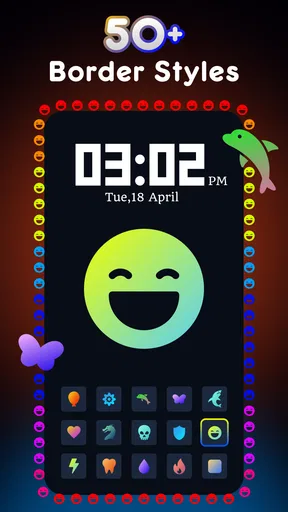
- Offers multiple border styles
- colors
- and animation patterns.
- Can add a decorative glow around the screen while charging.
- Customization options help match the effect to your wallpaper or theme.
- Lightweight design with a simple setup process.
Cons
- Some effects may use extra battery
- especially with frequent notifications.
- Certain features may require premium access or in-app purchases.
- Ads can interrupt the experience in the free version.
- Compatibility may vary across phones with curved or unusual displays.
- Notification access permissions may concern privacy-conscious users.
FAQs for Edge Lighting - LED Borders
What is Edge Lighting - LED Borders and what does it do?
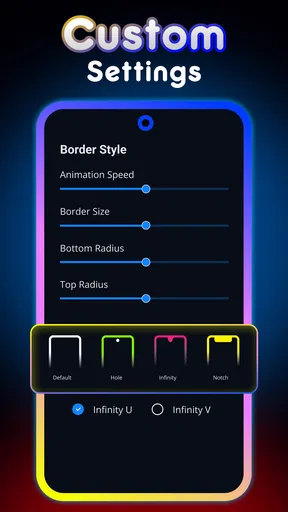
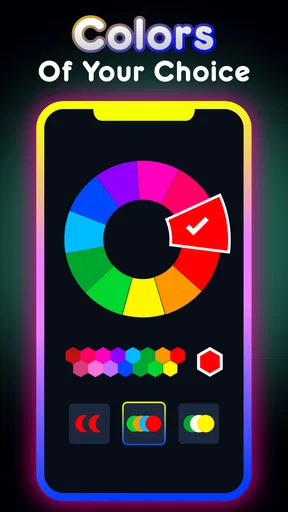
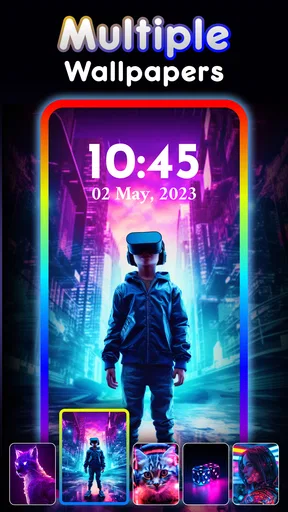
Edge Lighting - LED Borders is an Android customization app that adds colorful illuminated borders around the edges of your phone’s screen. After choosing a design, color, animation, and lighting speed, you can use the effect as a decorative overlay or wallpaper-style display. It is mainly intended to personalize the appearance of your device rather than improve system performance or notification reliability.
Does Edge Lighting - LED Borders work on every Android phone?
The app should work on many modern Android devices, but the experience can vary depending on the manufacturer, Android version, screen shape, and display settings. Phones with curved or edge-to-edge screens may show the borders more naturally, while devices with unusual aspect ratios can require adjustments. Battery-saving modes, system restrictions, or other overlay applications may also prevent the lighting effect from appearing correctly.
Does the app drain the battery or affect phone performance?
Animated edge lighting can use additional battery, especially when bright colors, fast animations, or continuous display effects are enabled for long periods. On most phones, the impact should be moderate, but it may be more noticeable on older devices or when the screen remains active frequently. Reducing animation speed, brightness, or usage time can help limit battery consumption and keep the phone responsive.
Is Edge Lighting - LED Borders free to use, and are there advertisements?
The app can generally be downloaded and used without an upfront payment, although some designs, colors, animations, or personalization tools may be limited to premium access. Free versions may also include advertisements, particularly when browsing themes or changing settings. Before downloading, check the current Google Play listing for the exact subscription, in-app purchase, advertising, and trial conditions available in your region.
Does Edge Lighting - LED Borders require special permissions?
Depending on the features you activate, the app may request permission to display over other applications, access notifications, or run in the background. Overlay permission is commonly needed to show borders above the home screen or other apps, while notification access may be used for alert-related lighting. Review each permission carefully and disable features you do not need, especially if privacy or background activity is a concern.


